
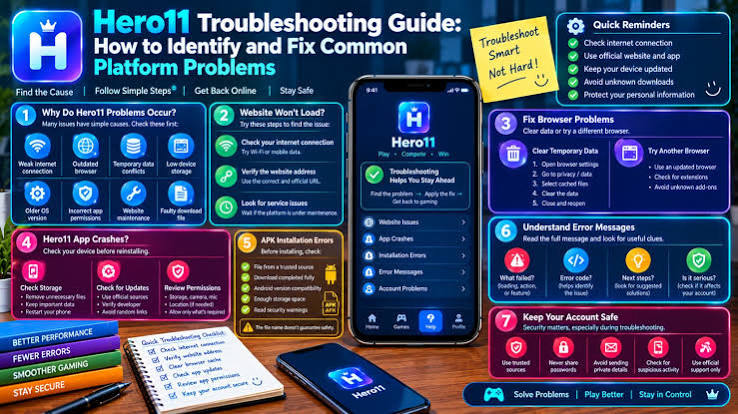

A download that does not even begin, the installation that goes through an error, and an app that crashes immediately when opened can all seem to be one issue. In reality, they occur at different parts, and knowing what stops which process will help you determine your further steps.
If you encounter any problems with Hero 11, look at what is happening with the smartphone’s functions. Did the file get saved to the Downloads folder? Was there an installation error given by Android? Did you manage to see the first screen of the app? Each detail will direct you towards a certain stage of the process.
When the Download Does Not Start or Finish
1. Check Whether the Link Still Opens
Return to the trusted website and check if the link takes you to the desired page. It is possible that the link taken from an earlier article or forwarded communication has been changed. If you reach a different page, check the guidelines of the publisher before trying again.
2. Check Your Network and Space
Find out if other websites work fine on the network of your gadget. If your device continues to load web pages slowly, try switching to another network. However, if the network is working fine, proceed to check the available disk space on your device.
3. Downloading
A browser can download the file automatically, without opening it. Before you restart downloading the new file, check the download history of your browser to find out if the file has been downloaded already.
When the File Downloads but the App Will Not Install
Step 1. Read the Message on the Screen
Should your phone display an installation error message, ensure you take note of the error message. An error about compatibility gets you to go back to your Android version and device specifications while an alert about the source of the application needs you to check the origin of the file. A screenshot can relieve you of memorizing the message in future.
Step 2. Check the version you tried
It’s possible that your Downloads might have multiple copies of the file since you could have clicked on the link multiple times. Identify the filename and the time of hero 11 download to find out your latest version you downloaded successfully. If the publisher specifies a version, also check that information as well.
Step 3. Examine any alert prior to retrying
In case the file was flagged by Android or Google Play Protect, go back to the instructions of the publisher and check for the source of download again. Retrieving the file will not give any new information about the reason behind its being flagged again.
When the App Installs but Will Not Open Properly
Should the Hero 11 app not function properly and present solutions, reboot the device before attempting to launch the app again. Pay close attention to which stage the app successfully reaches; note that a completely blank screen at startup differs from a screen that appears and stops when a certain option is selected.
Also verify whether the issue is an outcome of new equipment or facilities. Phone upgrade could be an option when asking for help, just as switching to another network or when installing a new version of the app.
In addition, it should be mentioned whether the sign-in process problem will create a message if the details are registered properly and if the loading circle will become stuck.
What to Include in a Support Request
In the case you need to reach out for support, you should provide any helpful information instead of giving a detailed account of everything you tried.
Your Android version and phone model.
The version of the app revealed if you have it.
Where the issue occurs: when downloading, installing, starting, or logging in.
The name of the error and what step was performed before this error occurred.
Steps already taken by the user, like rebooting the phone or switching to a different connection.
For instance, “the file has been downloaded but the following message is shown when opening the installer” will inform support about the exact operation that was performed just before the error appeared. If sending a screenshot, ensure all private information, notifications, or verification codes are removed.
Conclusion
Identify the very last step that worked and then check the link if the download failed, read the installer message in case of the failed installation or note down the last screen opened when launching the app. This information may help eliminate unnecessary actions and make it easier to clarify your situation.
Frequently Asked Questions
1. What causes the Hero 11 download to get interrupted midway?
When the connection is not secure or there is low storage space, the download can get halted. First ensure that both these aspects are fine and then check the download history in the browser to confirm if the download is finished.
2. What to do when you have downloaded the file but installation won’t take place?
Note down the error message. Check it first which will indicate the area to verify. You can check the Android version, installation file or a warning regarding the source.
3. What to inform customer service in case the Hero 11 application crashes soon after it gets opened?
Provide information like the device being used, Android version and application version, if applicable. Also mention if an error message or a loading screen appeared before the application crashes.