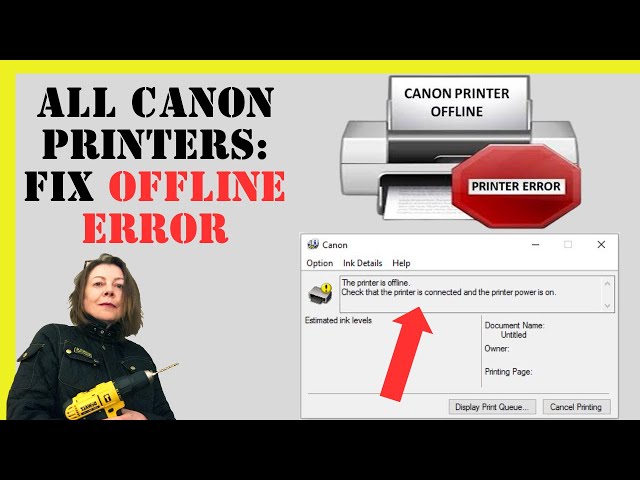
A printer that will not print is rarely a printer fault. The chain between pressing print and paper appearing has several links — application, print queue, driver, network, printer — and the failure is usually in one of the middle ones. People tend to start by restarting the printer, which is the least likely fix.
This guide works through the chain in the order that finds the problem fastest.
Reset sequences and test page methods differ between printers, and HP repair and service manuals set out the exact button combinations for each one.
First: does the printer work on its own?
Print a test or configuration page from the printer’s own control panel, with no computer involved. Nearly every printer can do this from a menu or a button combination.
- If the test page prints, the printer, cartridges, paper path and print mechanism are all working. The fault is in the connection, the driver or the queue — which is where the rest of this guide looks.
- If the test page does not print, the fault is in the printer itself, and the connection is irrelevant for now.
This single step removes about half the possible causes in under a minute, and it is the step most often skipped.
The print queue
A stuck job blocks everything behind it. The queue is the most common single cause of a printer that appears dead.
- Open the printer’s queue from the operating system’s devices or printers list.
- Cancel every job, including ones marked as deleting. A job stuck in deleting state will block the queue indefinitely.
- If jobs will not clear, restart the print spooler service. On Windows this is a service that can be restarted from the services list; on macOS, resetting the printing system from the printers preference pane achieves the same thing.
- Then send one small job — a single page of plain text — rather than the large document that failed.
A large or complex document, particularly one with high-resolution images, can fail while simple documents print normally. If plain text works and a specific file does not, the problem is that file rather than the printer.
The offline status
Offline usually means the operating system tried to reach the printer, failed, and set a flag that it does not always clear on its own.
- Check the printer is actually powered on and not in a sleep state that requires a button press.
- Uncheck use printer offline if the option is set.
- Check the right printer is set as default. Systems frequently create duplicate entries — a printer name with a copy suffix — and jobs go to the wrong one.
- Delete duplicate printer entries and keep one.
- Remove and re-add the printer if the status will not clear.
Network connection
For a network or wireless printer, confirm the connection from the printer’s side rather than from the computer.
- Print a network configuration page from the printer’s panel and note the IP address.
- Check that address is on the same subnet as your computer. A printer on a guest network or a different band cannot be reached.
- Type the IP address into a browser. Most network printers serve a status page, and if it loads, the network path is fine and the problem is the driver or queue.
- Assign a static address or a DHCP reservation. A printer whose address changes when the router reassigns leases will stop working periodically, which is the classic works-then-stops pattern.
- Check the printer is on the 2.4 GHz band if it does not support 5 GHz, which many do not.
USB connection
- Try a different port, preferably directly on the computer rather than through a hub.
- Try a different cable. USB cables fail more often than people expect, and a marginal one produces intermittent behaviour rather than a clean failure.
- Check the cable length. Long USB runs without a powered repeater are unreliable.
Drivers
- A system update can replace a working driver with a generic one that lacks features or fails on certain jobs.
- Remove the printer completely, then remove the driver package itself, then reinstall. Simply re-adding the printer often reuses the broken driver.
- Prefer the manufacturer’s full driver over a generic class driver where the printer has features you use.
- On a corporate network, print jobs may route through a print server, and the fault may be there rather than on your machine.
Paper path problems
If the test page failed, the fault is mechanical or consumable:
- Check for paper jams, including small torn fragments left behind after a previous jam. These are the usual cause of a printer that reports a jam with no visible paper.
- Open every access door and check the full path, not just the tray.
- Check paper is loaded correctly, guides are against the stack without squeezing it, and the stack is below the maximum line.
- Fan the stack before loading. Sheets stuck together cause multi-feeds and jams.
- Check the paper type setting matches what is loaded.
- Check cartridge or toner status and that all protective tape and packaging was removed from new consumables.
If the panel sequence for your printer is not obvious, manualmachine.com lists the documented procedure for most models still in service.
The reset that works
Power cycling a printer properly means unplugging it at the wall for a minute rather than using the power button, which on many models only puts it into standby. Do the same with the router if the connection is the suspect. Power the router first, let it settle, then the printer, then the computer.
Frequently asked questions
Why does it work for one computer but not another?
That isolates the fault to the second computer’s driver, queue or network configuration rather than the printer.
Why does it print sometimes and not others?
Intermittent behaviour usually points to a changing IP address, a weak wireless signal, or a sleep state the printer does not wake from reliably.
Should I use the wireless direct mode?
It is useful for diagnosis, because it bypasses your network entirely. If printing works over direct mode and not over the network, the printer is fine.